
Home Page
General view and navigation
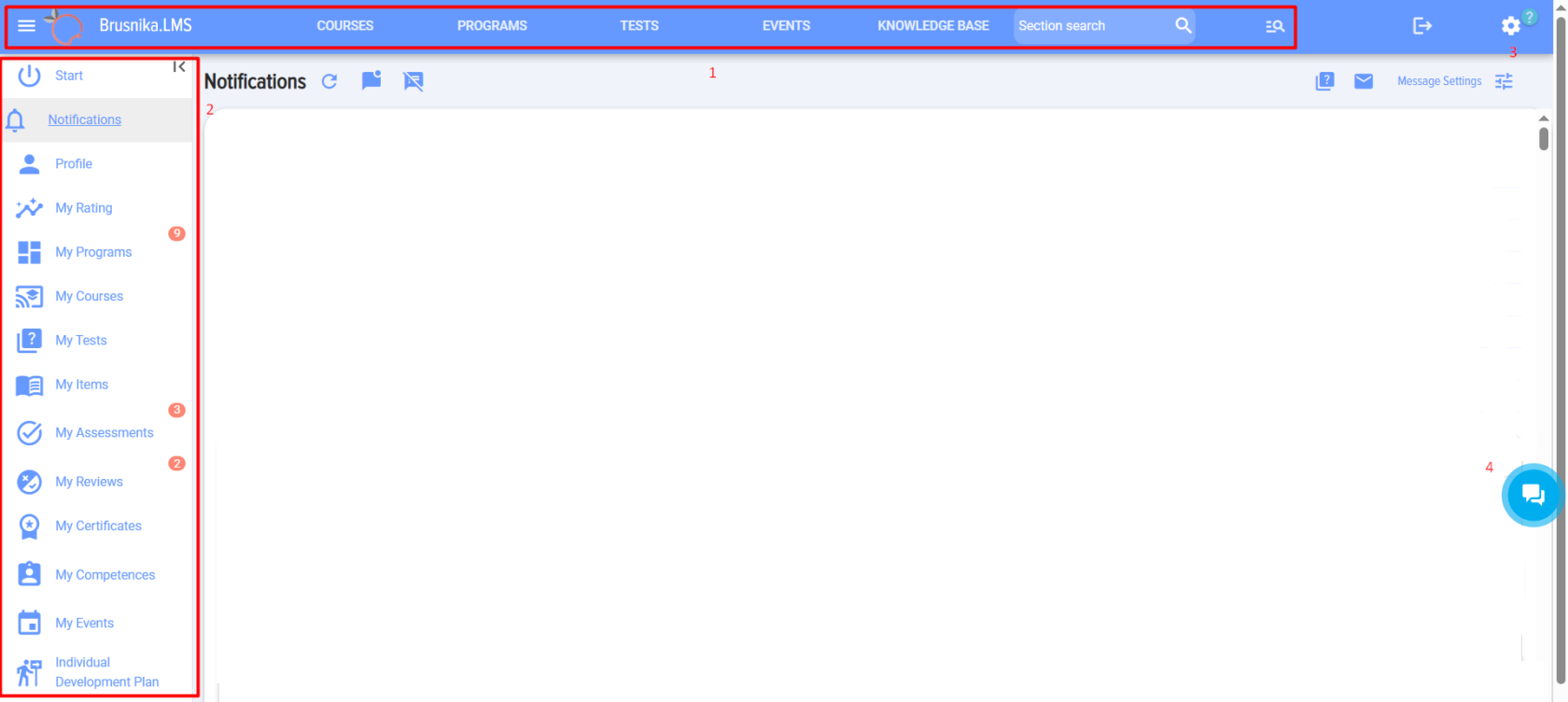
The main screen of the application looks as follows:
Consists of the following blocks:
1 - Application MenuAvailable to all employees.
2 - Personal Account employeeEach employee has their own data in their personal account.
3 - Moderator Application MenuThe element is available only to application moderators or administrators of the CRM or ERP system.
4 Open lineYou can write here for any questions and receive consultation or technical support.
After the initial installation of the application, it is necessary to add an application moderator: Application Settings - Moderators - Add.
Personal account
The employee's personal account provides access to the following tabs:
- Start - Application Information Page.
- Items from the Feedback to Individual Development Plan - items for the employee. Described separately.
- ReportsAn employee can generate reports about themselves, a manager - about themselves and their subordinates, a moderator with limited rights - about all employees.
- Instruction. Link to the latest version of the user manual.
- Modify menu. It works as follows. The application moderator has three selection options:
- ShowIf the moderator selected this option, then this item will be It is displayed for all employees.
- Do not show. If the moderator selected this option, then this item It will not be. It is displayed for all employees.
- At User's Discretion. If this option is selected, each user will be able to hide or show this menu item themselves.
- Selection menu Application languageThe menu is available to all employees. The application is available in 11 languages. Each employee can set their preferred language individually, and upon the next login, the application will display in the previously selected language.
Top menu
The menu consists of the following elements:
 - The element collapses the personal account menu.
- Application logo. The application name and logo can be changed in the Application Settings: Settings - Theme. Please note that this is a paid feature. You can purchase a Theme subscription in the section My Plan - Theme.
- Search within section. Quick search performs a search within the current section where the user is located.
- Advanced search. Search across the entire application.
- Catalog courses, programs, tests, events and knowledge base.
All elements are persistent and displayed on every page of the application for all employees. Each element can be hidden in the application settings (Settings - Application Settings - Others). Then it will not be visible employees, not visible to the moderator.



Application management and settings
This Section is visible only to application moderators. It is used for:
- Educational Process Management.
- Application Settings.
For more detailed information, refer to the separate section.
Frequently Asked Questions
Question: How to hide items in the left menu?
Answer:
The application features a two-level visibility control system for left menu items. At the first level, the moderator sets the general availability of items for all employees by selecting "show," "do not show," or "At User's Discretion". If "At User's Discretion" is selected, at the second level, each employee can independently configure the display of these items in their personal account. Items hidden by the moderator will appear grayed out for them.
Answer:
The application implements a two-level menu item management system on the left:
- At the first level, the moderator controls the availability of items for all employees.
- At the second level, the employee can configure the personal display.
Settings for all employeesThe moderator clicks on the "Edit Menu" text at the very bottom of the left menu. When clicked, each menu item displays a slider that can be in one of three states:
- do not display (left position);
- At User's Discretion (centered position);
- display (right position).
If "do not show" is selected for any item, that menu item will not be visible to any employee. The moderator will see it displayed in gray. If "show" is selected, everyone will see it. If "At User's Discretion" is selected, the user will similarly be able to configure the display of this item for themselves.
Question: Is it possible to hide directories in the top menu?
Answer:
Yes, any Catalog can be hidden from employees. One or several. Then it will not be visible to employees, but the moderator always sees all catalogs.
By Default all catalogs are open. To hide Catalog open: Settings (gear icon top right) - Application Settings - More - Others. Select Catalog you want to hide and toggle the switch to active state (means hiding the catalog).
Question: I installed an application from the market, but I don't see it, I can't find it.
Answer:
Find the app marketplace in your CRM, then in the marketplace locate "Installed". In the installed section, you will find the application Brusnika.LMS. Open it.
You can add a quick link to the application in your CRM menu. All CRMs have the ability to manage menu items (add, hide). Typically, there is an element that allows you to open menu item editing—find it and add a quick link to the LMS system in the menu.
Question: I installed an application from the market, but I can't see it, I can't find it.
Answer:
Find the app marketplace in your CRM, then in the marketplace, locate "Installed". In the installed section, you will find the application Brusnika.LMS. Open it.
You can add a quick link to the application in your CRM menu. All CRMs have the ability to manage menu items (add, hide). Typically, there is an element that allows you to open the editing of menu items; find it and add a quick link to the LMS system in the menu.
Question: What is Brusnika.LMS and what are its main components?
Answer:
Brusnika.LMS is an application (learning management system) designed for organizing and managing the educational process. The main screen of the application consists of three main blocks: Application Menu (accessible to all employees), Personal Account Employee (personal data and functions for each user), and Application Moderator Menu (accessible only to moderators or administrators of the CRM/ERP system). There is also an "Open Line" for obtaining consultations and technical support.
Question: What functions are available in the employee's personal account?
Answer:
In the employee's personal account, the following tabs are available: "Start" (application information), items from "Feed" to "Individual Development Plan" (personal data and activities), "Reports" (allows employees to generate reports about themselves, managers about themselves and their subordinates, moderators about all employees), and "Instructions" (link to the current version of the user manual).
Question: How can a moderator manage the display of menu items for employees?
Answer:
The application moderator has flexible settings for managing menu item visibility. They can choose one of three options for each item: "Show" (the item will be visible to all employees), "Do not show" (the item will not be visible to any employee), or "At User's Discretion" (each employee can independently decide whether to hide or display this item). This configuration is performed through the "Edit Menu" option at the bottom of the moderator's left menu.
Question: How to change the application language and which languages are supported?
Answer:
The application supports 13 languages, and each employee can set their preferred language personally. The language selection menu is available to all employees and is located at the very bottom of the left menu. Once selected, the language will be saved for subsequent logins to the application.
The following languages are supported: English, Russian, Japanese, Chinese, French, German, Spanish, Portuguese, Turkish, Polish, Ukrainian, Italian, Vietnamese.
Question: What elements are in the top menu and can they be customized?
Question: Is it possible to hide directories in the top menu from employees?
Answer:
Yes, a moderator can hide one or more catalogs from the top menu for employees. Hidden catalogs will not be visible to employees but will always remain accessible to the moderator. To do this, go to "Settings" (gear icon), then "Application Settings," "More," "Others," and activate the toggle switch next to the catalog you wish to hide.
Question: What to do if the "Brusnika.LMS" application is installed but not displayed in CRM?
Answer:
If the application is installed from the marketplace but is not visible, you need to find it in the "Installed" section of your CRM's application marketplace. For easier access, it is recommended to add a quick link to Brusnika.LMS to the main menu of your CRM system. The functionality for managing menu items (adding, hiding) is usually available in all CRMs.
Question: What to do if the "Brusnika.LMS" application is installed but not displayed in the CRM?
Answer:
If the application is installed from the marketplace but is not visible, it must be found in the "Installed" section of your CRM's application marketplace. For more convenient access, it is recommended to add a quick link to Brusnika.LMS to the main menu of your CRM system. The functionality for managing menu items (adding, hiding) is usually available in all CRMs.