
My Plan
Plans Description
1. Demo Plan
The Demo Plan is available to everyone upon the initial installation of the LMS and lasts for 3 months:
-
Courses, Tests, Lessons: Unlimited
-
Users: Unlimited
-
Features and Modules: Unlimited
-
Cloud Storage: 1 gigabyte
2. Subscription for Review, Case Plan
This plan lasts for 1, 3 months and is granted once per user upon leaving a positive review for the application (1 month) or submission of a case study for publication on the website (3 months). The conditions are:
-
Courses, Tests, Lessons: Unlimited
-
Users: Unlimited
-
Features and Modules: Unlimited
-
Cloud Storage: 1 gigabyte
3. Free Plan
-
After the Demo period and the "Subscription for Review" plan (if activated) expire, the LMS system transitions to the Free Plan. Under the Free Plan:
-
Users: Unlimited
-
Features and Modules: Unlimited
-
Cloud Storage: 1 gigabyte
-
-
Limitations of the Free Plan:
-
Lessons Catalog: Limited to a maximum of 3 lessons.
-
Courses Catalog: Limited to a maximum of 3 courses.
-
Tests Catalog: Limited to a maximum of 3 tests.
-
-
If you have more than 3 lessons, courses, or tests:
-
The system will block the completion of courses and tests.
-
The system will block the creation of new lessons, courses, and tests.
-
This blocking will remain in effect until the catalogs contain no more than 3 courses, 3 tests, and 3 lessons.
-
-
When the LMS transitions to the Free Plan:
-
Your existing courses, tests, and lessons will not disappear; they will remain in the system.
-
You can export them (an "Export" option is available on the card).
-
All materials can be downloaded from the Disk section (Settings > Application Settings > Disk).
-
4. Paid Plan
The conditions for both six-month and annual subscriptions are the same:
-
Courses, Tests, Lessons: Unlimited
-
Users: Unlimited
-
Features and Modules: Unlimited
-
Cloud Storage: 1 gigabyte
How to Purchase a Subscription
1. Payment in USD.
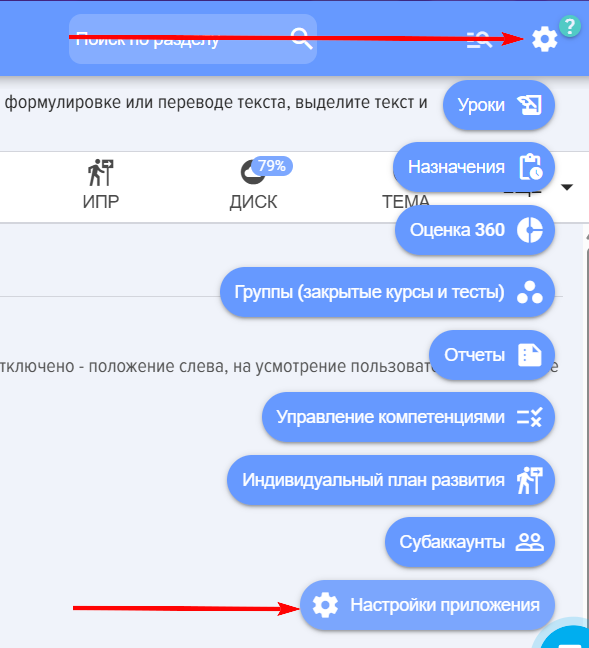
1.1. Open the My Plan Section (Settings - Application Settings - My Plan):
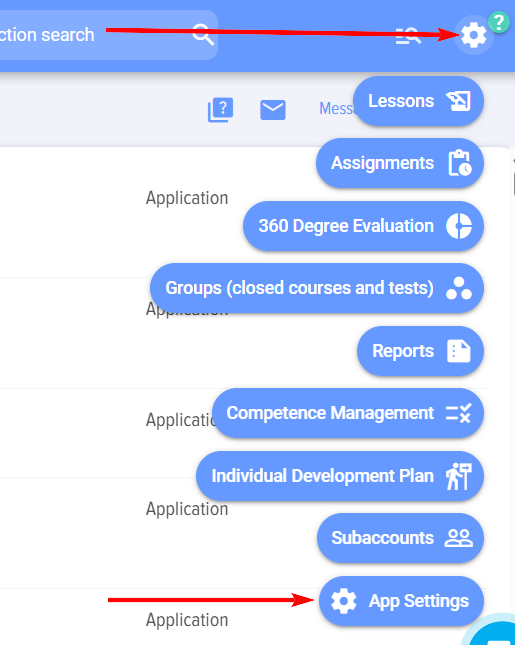
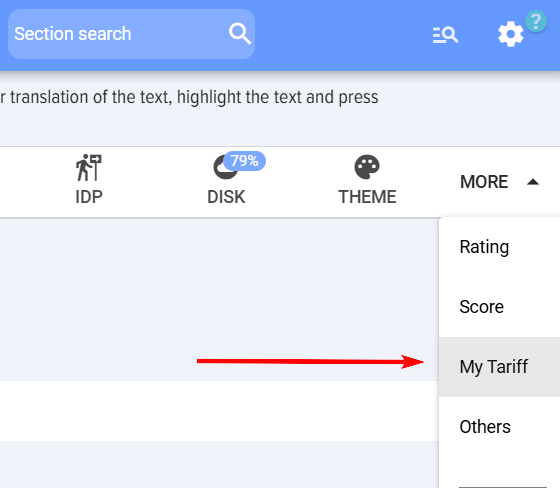
1.2. Select the required service:

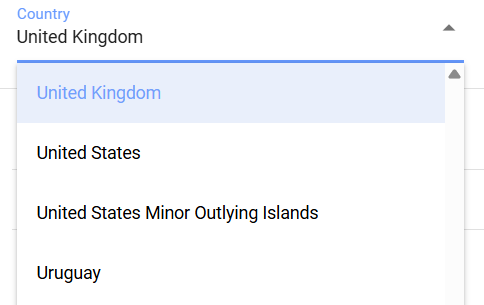
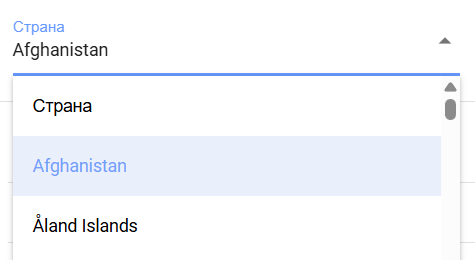
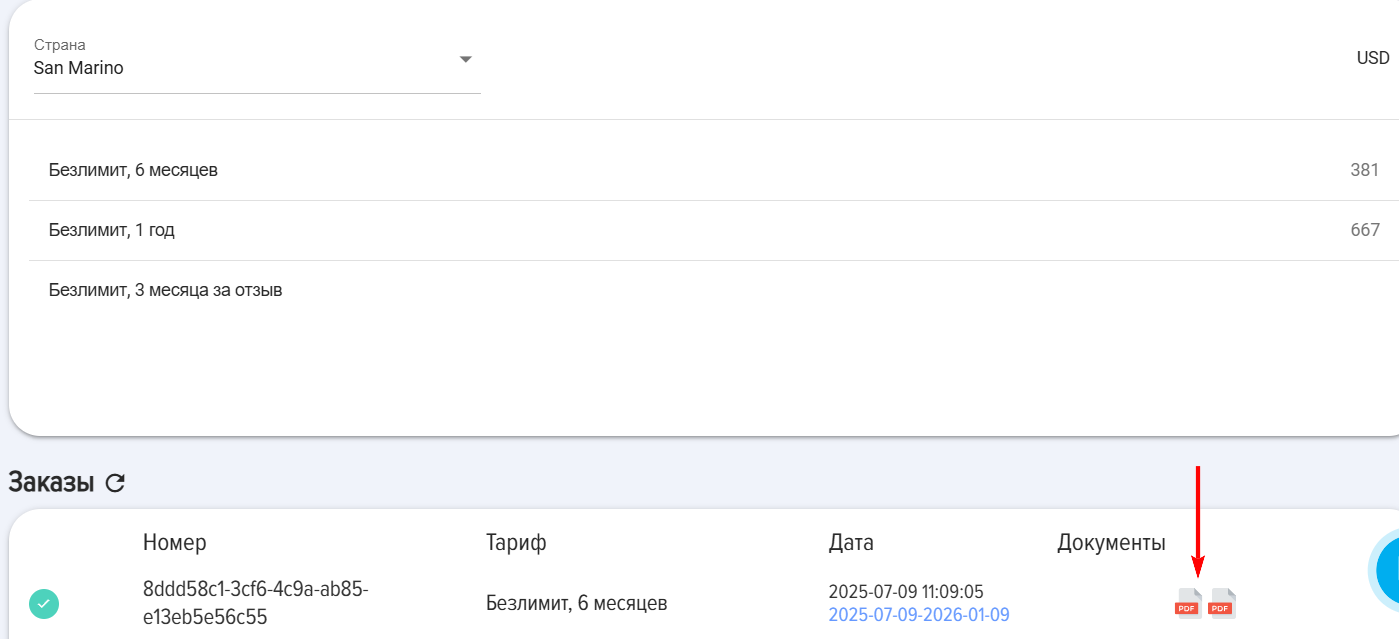
1.3. Select the country
1.4. Select the plan and click on it

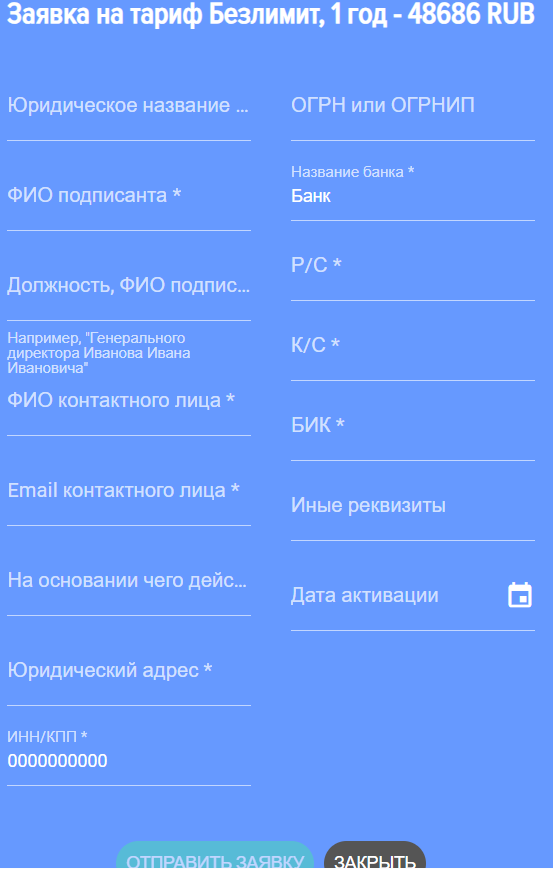
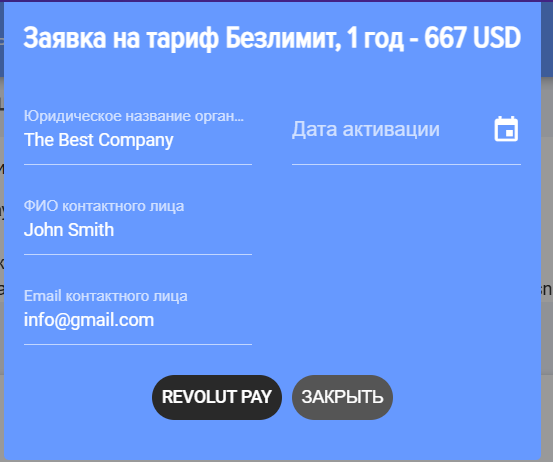
1.5. Fill out the application:
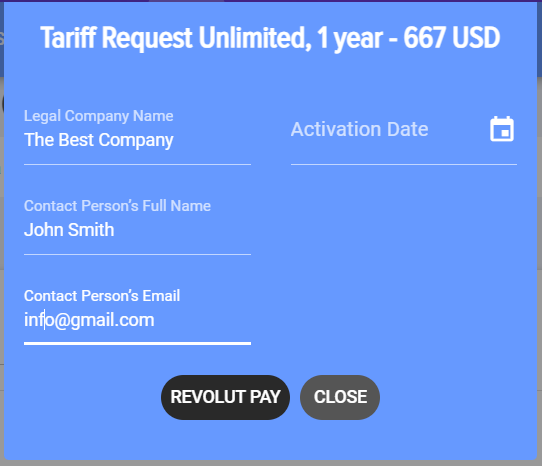
IMPORTANT! The Plan activation date field is the date from which the Plan will be activated. For example, you make a payment on the 10th. The current subscription is valid until the 20th. In this field, you can specify the 20th, then the Plan will be activated on the 20th. If nothing is specified in this field, the Plan will be activated immediately after the payment is received.
1.6. Click REVOLUT PAY. After clicking, the subscription payment form via the REVOLUT PAY service will open:
a) The payment is made in favor of a company in Cyprus. The payer bears no legal, financial, or other risks.
b) The Revolut service may charge additional fees depending on the country.
1.7. After payment, the Plan will be activated automatically.
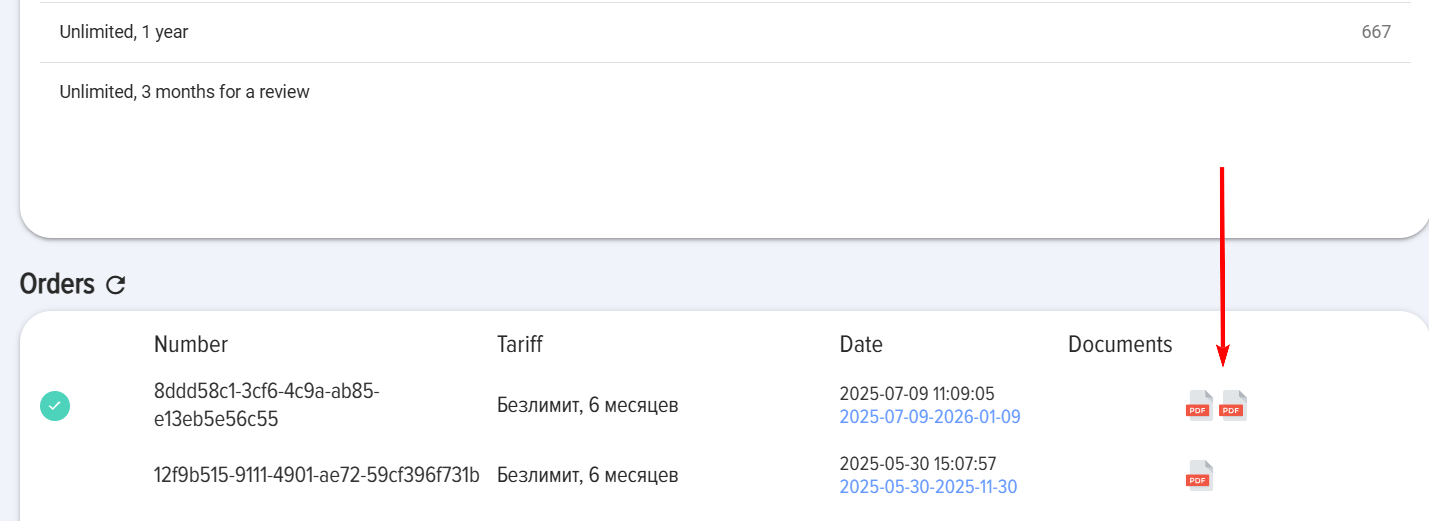
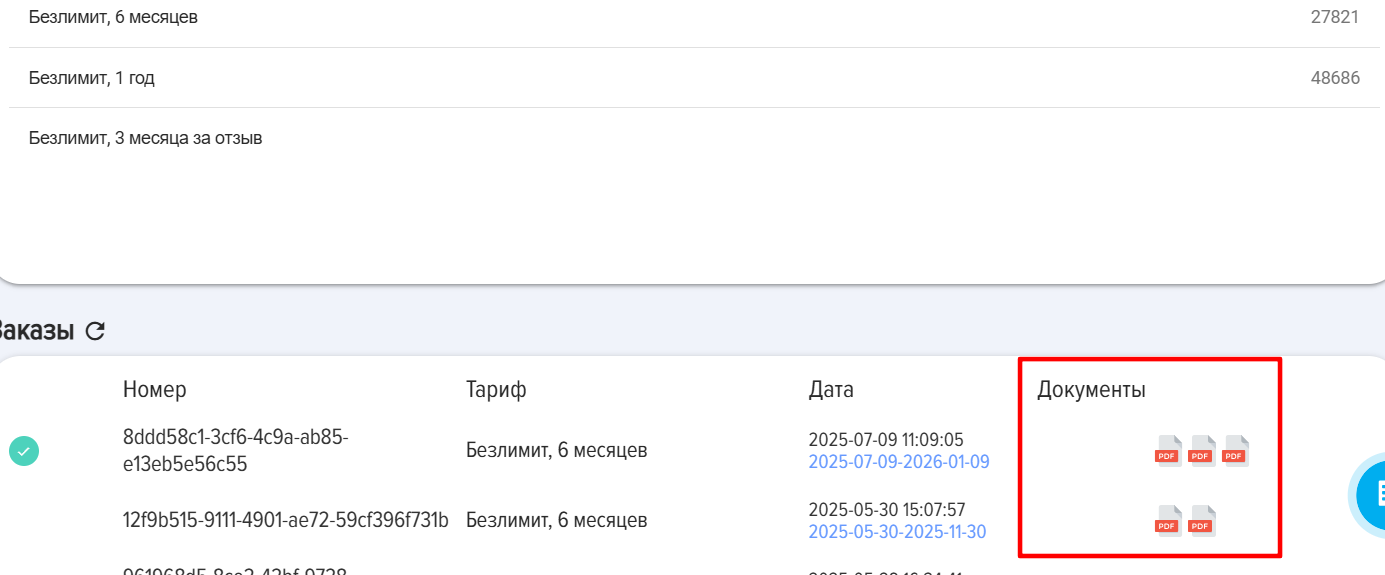
1.8. Documents can be downloaded below in the Orders section:
Introduction
In the My plan section, youYou can view current tariff plans and purchase new ones.ones in the section.
General instructions for purchasing a subscription.
1. Open the section:Section:
Moderator menuMenu –- Application settingsSettings –- My planPlan –- Licenses tabTab or another tab.
2. Select your country and tariff plan.
3. Fill out the application. If the details are filled in the Details tab, they will populatebe pulled into the card. If not, they will be saved after filling.
Please
Notenote the item: PlanTariff activation date. If no date is selected, the Plan will be activated automatically after funds are credited to the account. If a date is selected, the Plan will be activated on the specified date.Note the item: Plan activation date. If no date is selected, the Plan will be activated automatically after funds are received. If a date is selected, the Plan will be activated on the specified date.
4. After completing the application, the following documents will be generated below:at the bottom:
- For CIS countries:
ForDuring initial registration: contract,softwarelicenselicensetransfer and acceptance certificate, payment invoice;ForUpon renewal:softwarethe license transfer and acceptance certificate,invoice.the invoice for payment.
- For other countries:
- Invoice.
5. Pay the invoice. After payment, the Plan will be activated automatically (immediately if no date was specified in the PlanTariff activationActivation dateDate field,field or on the date selected in the PlanTariff activationActivation dateDate field).
6. For CIS countries. Download the requirednecessary documents, add your signaturesign and stamp,stamp them, and send the scans to us by email. info@novus-hcm.com If necessary, documents can be exchanged viathrough the Diadoc or Sbis systems. Our organizationorganization's ID:identifier: 2BM-7725783023-2013101711204935777100000000000
Licenses
1. The current Plantariff plan is displayedindicated at the top,above, as well as the additional Planplan that will take effect after the current one ends (after the plus sign).

After initialthe first installation - 3 months are provided free of charge and without restrictions.
2. To receiveget a 3-month subscription for a review:
- Leave a review
aboutfor the application. For example, in theapplicationapp marketplace. ApplyMake a request forthePlanReviewAppfor the app Plan.review.- Send it to us
a screenshot of your review viaby email (Info@novus-hcm.com or info@brusnika-solutions.com)A screenshot with your feedback. - We
willareactivateactivating yourrequest.application.
Disk
In this section, you can purchase a subscription forto Disk.
Theme
In thisthe section, you can purchase a subscription forto the Theme.
Subaccounts
1. In thisthe section, you can purchase a subscription forto Subaccounts.
2. To receiveobtain a demo Plansubscription for subaccountssub-accounts "TrainingLearning under one account for 1 month for up to 100 people":
fillFill out and submit the application forthePlan;thePlanwill beis activated automatically.
Support
1. In this section, you can purchase support from the developers.
2. In this section, the "Data Migration" service is purchased.acquired. To purchaseacquire the service, it is necessary to select thePlan "Developer consultationConsultation and support,Support, 4 hours" Plan..
Details
In this tab, fill in the details thatare filled in, which will be saved and used for future orders.
Plan Descriptions
1. Demo Plan.
Provided to everyone without exception after the initial installation of the LMS for 3 months:
2. Subscription for Feedback, Case.
1, 3 months. Provided upon leaving a positive review of the application (1 month) or providing a case for publication on the website (3 months). Provided once. Conditions:
3. Free Plan.
1. After the completion of the Demo Period and the "Subscription for Feedback" Plan (if it was activated), the LMS system transitions to the free Plan. Under the free Plan:
2. What are the limitations of the free plan:
3. If there are more than 3 lessons, courses, tests:
Blocking occurs until there are no more than 3 courses, no more than 3 tests, and no more than ͏lessons in the catalogs.
4. When the LMS switches to a free plan:
4. Paid Plan.
Conditions for six months and one year are identical.
How to purchase a subscription
1. Payment in rubles.
1.1. Open theSection My Plan section (Settings - Application Settings - My Plan)Plan):
1.2. Select the required service :
1.3. Select a country
1.4. Select aPlan plan and click on it.it
1.5. Fill outin the application form::
IMPORTANT! In the field "Position, Full Name of the Signatory to be indicated in the genitive case,"case", it is crucial to fill in the full name and position of the signatory specificallyexactly in the genitive case. For example, *of the General Director Ivanov Ivan Ivanovich*.Ivanovich.
IMPORTANT! PlanTariff activation date field. This is the date from which the planPlan will be activated. For example, you make the payment on the 10th. The current subscription is still valid until the 20th. In this field, you can specify the 20th, then the planPlan will be activated on the 20th. If nothing is specified in this field, the planPlan will be activated immediately after the payment is received.
1.6. ClickPress Submit Application.an application. After clicking:pressing:
A) The following documents will be generated:
UponDuring initial registration: contract, acceptance certificate, invoice for payment;- Upon renewal:
handoveracceptance certificate, invoice for payment.
B) The documents are located hereright below, in the Orders section:
B) Pay the invoice. After payment, the planPlan will be activated automatically (immediately if no date was specified in the PlanTariff Activation Date field or on the date selected in the PlanTariff Activation Date field).
D) If necessary, documents can be exchanged viathrough the Diadoc or Sbis systems. Our organization's identifier:
2BM-7725783023-2013101711204935777100000000000
Or download the necessarydocuments documents,you need, sign and stamp them, and send us the scans toby usemail. at info@novus-hcm.com.info@novus-hcm.com
2. Payment in USD.
2.1. Open theSection My Plan section (Settings - Application Settings - My Plan)Plan):
2.2. Select the required service :
2.3. Select a country
2.4. Select aPlan plan and click on it
2.5. Fill outin the application form.:
IMPORTANT! PlanTariff activation date field. - the date from which the planPlan will be activated. For example, you make a payment on the 10th. The current subscription is valid until the 20th. In this field, you can specify the 20th, then the planPlan will be activated on the 20th. If nothing is specified in this field, the planPlan will be activated immediately after the payment is received.
2.6. ClickPress REVOLUT PAY. After clicking, the subscription payment form will open via the REVOLUT PAY service will open:service:
a) Payment is made toin favor of the company in Cyprus. The payer bears no legal, financial, or other risks.
b) The Revolut service may charge additional fees depending on the country.
2.7. After payment,Payment the planPlan is activated automatically.
2.8. Documents It can be downloaded below in the Orders section:
General Instructions for Subscription Purchase.
1. Open the section:
2. Select your country and plan.
3. Fill out the application. If the details are filled in the Details tab, they will be pulled into the card. If not, they will be saved after being filled out.
4. After filling out the application, the following documents will be generated at the bottom:
5. Pay the invoice. After payment, the plan will be activated automatically (immediately if no date was specified in the Plan Activation Date field or on the date selected in the Plan Activation Date field).
6. For CIS countries. Download the required documents, sign and stamp them, and send the scans to us at info@novus-hcm.com. If necessary, documents can be exchanged through the Diadoc or Sbis systems. Our organization identifier: 2BM-7725783023-2013101711204935777100000000000
1. The current plan is displayed at the top, along with the additional plan that will take effect after the current one is completed (after the plus sign).
After the initial installation - 3 months are provided free of charge and without restrictions.
2. To receive a 3-month subscription for feedback:
In the section, you can purchase a subscription to Disk.
In the section, you can purchase a subscription to a Theme.
1. In the section, you can purchase a subscription to Subaccounts.
2. To obtain a demo subscription for subaccounts "Learning under one account for 1 month up to 100 people":
1. In this section, you can purchase support from the developers.
2. In this section, the "Data Migration" service is acquired. To acquire the service, it is necessary to select the "Developer Consultation and Support, 4 hours" plan.
In this tab, the details are filled in, which will be saved and used for future orders.
Frequently Asked Questions
Question: We have paid for the subscription, when will the restrictions be lifted?
Answer:
Answer:
The subscription is activated immediately after payment. If the applicationrestrictions are still hasnot restrictions,lifted in the application, clear the applicationapp cache: Feed - ResetClear Applicationapp Cachecache or simply refresh the browser and reopen the LMS system.
Question: Where can I see when the Action subscription ends?
Answer:
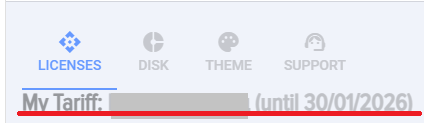
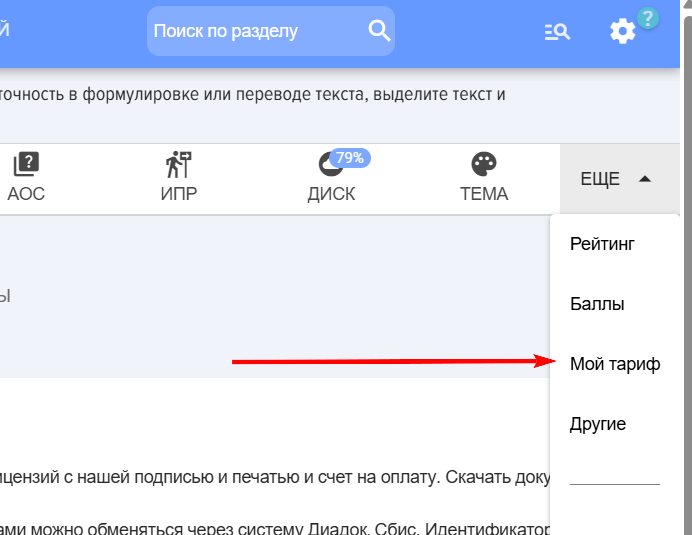
All tariff plans, as well as active subscriptions, can be viewed in the section: Settings (gear icon at the top right) - Application Settings - More - My Plan. Select the desired tab, and all information will be displayed there, including the subscription expiration date. Additionally, in the tab, you can download documents (for payments in USD - an invoice; for payments in RUB - a payment invoice, an act, and a contract/supplementary agreement).
Question: Where can I see when the subscription expires?
Answer:
All plan options, as well as active subscriptions, can be viewed in the section: Settings (gear icon top right) - Application Settings - More - My Plan. Select the required tab, and all information, including the subscription validity period, will be displayed there. Additionally, within the tab, you can upload documents (for payment in USD - an invoice; for payment in RUB - a payment invoice, certificate of completion, and contract/supplementary agreement).
Question: What is the difference between the unlimited plan and the free version?
Answer:
In the free version, each catalog can contain no more than 3 lessons, no more than 3 tests, and no more than 3 courses. In the Unlimited Plan,plan, there is an unlimited number.
Question: How to purchase a subscription?
Answer:
Subscription AcquisitionPurchase GuideInstructions:
- Open
theSection<span lang="en">MyPlan</span>Plan:section:Settings (gear icon top right) -ApplicationApp Settings - More -<span lang="en">MyPlan</span>.Plan. - Select the required service in the corresponding tab (License, Disk, etc.).
- Ensure that the country is selected correctly.
- Select
a planPlan and click on it. - Fill out the application.
-
Click
**SubmitRequest**.Request. Afterclicking:pressing:The-
documentsDocuments will be generated:
For- When paying in
RUB:rubles:For- During initial registration: contract, acceptance certificate,
invoice;invoiceForfor payment; - Upon renewal: acceptance certificate,
invoice.invoiceForforpaymentpayment.
- During initial registration: contract, acceptance certificate,
- When paying in USD:
- Invoice.
payment - When paying in
- The documents are located
hereright below, in the**Orders**Orders section.
following -
IMPORTANT! PlanTariff activation date field. This is the date from which the planPlan will be activated. For example, you make the payment on the 10th. The current subscription is still valid until the 20th. In this field, you can specify the 20th, then the planPlan will be activated on the 20th. If nothing is specified in this field, the planPlan will be activated immediately after the payment is received.
Pay the invoice. After payment, the planPlan will be activated automatically (immediately if no date was specified in the PlanTariff Activation Date field or on the date selected in the PlanTariff Activation Date field).
Please issue (send) us an invoice.
Answer:
To receive an invoice, you need to submit a request on Plan according to the following instructions:
- Open Section My Plan: Settings (gear icon top right) - App Settings - More - My Plan.
- Select the required service in the corresponding tab (License, Disk, etc.).
- Ensure that the country is selected correctly.
- Select Plan and click on it.
- Fill out the application.
-
Click Submit Request. After pressing:
-
Documents will be generated:
- When paying in rubles:
- During initial registration: contract, acceptance certificate, invoice for payment;
- Upon renewal: acceptance certificate, invoice for payment.
- When paying in USD:
- Invoice.
- When paying in rubles:
- The documents are located right below, in the Orders section.
-
IMPORTANT! Tariff activation date field. This is the date from which the Plan will be activated. For example, you make the payment on the 10th. The current subscription is still valid until the 20th. In this field, you can specify the 20th, then the Plan will be activated on the 20th. If nothing is specified in this field, the Plan will be activated immediately after the payment is received.
Pay the invoice. After payment, Plan will be activated automatically (immediately if no date was specified in the Tariff Activation Date field or on the date selected in the Tariff Activation Date field).
Issue us an invoice.
Answer:
To receive an invoice, you must submit a request for a plan in accordance with the following instructions:
IMPORTANT! Plan activation date field. This is the date from which the plan will be activated. For example, you make the payment on the 10th. The current subscription is still valid until the 20th. In this field, you can specify the 20th, then the plan will be activated on the 20th. If nothing is specified in this field, the plan will be activated immediately after the payment is received.
Pay the invoice. After payment, the plan will be activated automatically (immediately if no date was specified in the Plan Activation Date field or on the date selected in the Plan Activation Date field).




Tariff
1.
Provided
- Number of courses, tests, lessons - unlimited;
- Number of users - unlimited;
- Functionality and modules - without restrictions;
- Cloud storage - 1 gigabyte.
2. Subscription for feedback, case.
1, 3 months. Provided upon leaving a positive review of the application (1 month) or providing a case for publication on the website (3 months). Provided once. Conditions:
- Number of courses, tests, lessons - unlimited;
- Number of users - unlimited;
- Functionality and modules - without restrictions;
- Cloud storage - 1 gigabyte.
3. Free Plan.
1. After the Demo period and the "Subscription for Feedback" plan (if activated) are completed, the LMS system transitions to the free Plan plan. Under the free plan:
- Number of users - unlimited;
- Functionality and modules - without restrictions;
- Cloud storage - 1 gigabyte.
2. What are the limitations of the free tier:
- In the lesson catalog there may be no more than 3 lessons;
- In the course catalog, there may be no more than 3 courses;
- In the test catalog, there may be no more than 3 tests.
3. If there are more than 3 lessons, courses, tests:
- The system blocks Completion courses, tests.
- The system blocks the creation of new lessons, courses, and tests.
Blocking will occur as long as there are no more than 3 courses, no more than 3 tests, and no more than 3 lessons in the directories.
4. When the LMS switches to free Plan:
- Courses, tests, and lessons do not disappear; they remain in the system.
- They can be exported (the card has an Export element);
- All materials can be downloaded in the Disk section (Settings - App Settings - Disk).
4. Paid Plan.
Conditions for six months and one year are the same.:
- Number of courses, tests, lessons - unlimited;
- Number of users - unlimited;
- Functionality and modules - without restrictions;
- Cloud storage - 1 gigabyte.