
Catalog sections
SectionsThe sections are implemented for easeconvenient ofsearch, searching, displaying,display, and workingwork with courses, tests, and programs.
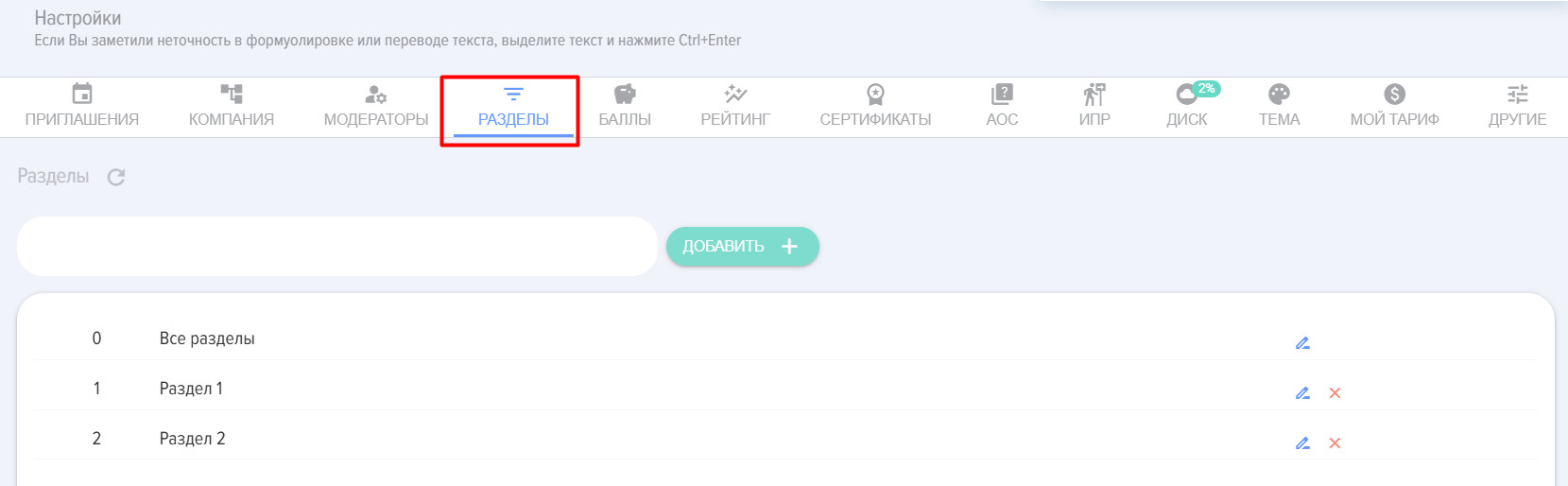
To add Section, you need to enter the name in the input windowfield and press "Add +".
It is recommended not to add not too many entities (20-30) to Section to avoid unnecessarily slowing down catalog operations.
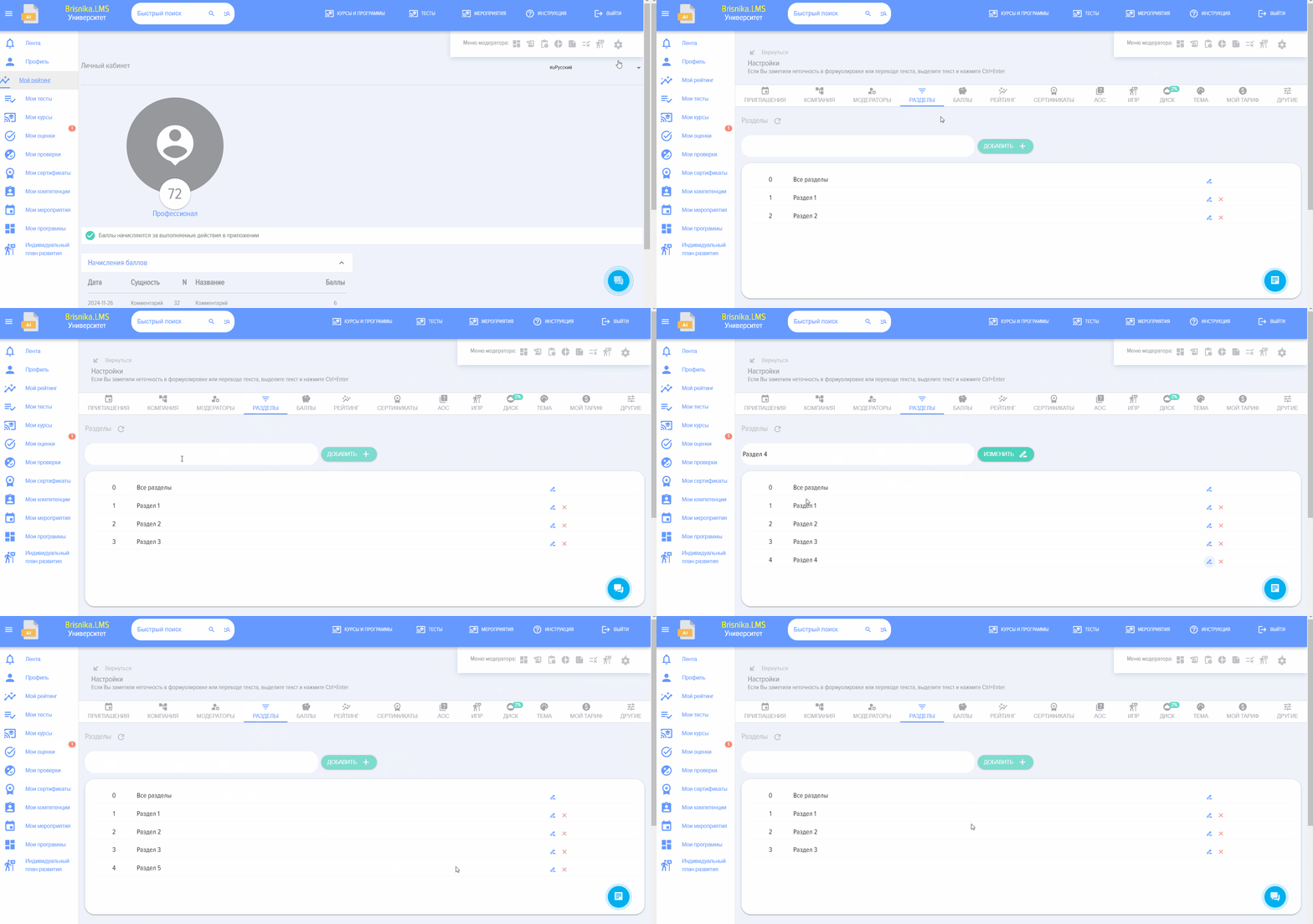
SectionsThe sections will be sorted alphabetically afterwards.later.
To change the section name, click on the pencil icon next to it, then enter themake changes in the input window and click on the pencil icon "Edit" pencil icon..
To delete a section, click on the cross next to it.
Before deletingremoving athe section, it is recommended to first transfer its contents,content, otherwise theyit will be lost.
Element  "Default Settings" is intended for resetting section settings.
Frequently Asked Questions
Question: How to add the Section catalog?
Answer:
Brief Answer: Catalog sections are created and managed in the "Settings" -> "Application Settings" -> "Sections" section.
Details:
• To add a section, enter its name in the input field and press the "Add +" button.
• To renamechange the name of an existing section, click the pencil icon next to it, make your changes, and press "Edit".
• To delete a section, click on the cross icon next to it, having first moved all content from it to preventavoid data loss.
• Sections are automatically sorted alphabetically.
• It is recommended to add no more than 20-30 entities to a singleone Section to maintain system performance.
Location in the interfaceSettings -> Application Settings -> Sections.