
Assessment 360
Introduction
1. Using this module, you can conduct 360-degree assessments, 180-degree assessments, and any other types of evaluations where some people assess others.
2. The application implements three-tier model, which can be used to describe various competency models.
Level 1 - CompetenceFor example, "teamwork".
Level 2 - Manifestation IndicatorFor example, for the competency "teamwork," "shows interest in the opinions of other colleagues," "quickly establishes contact and maintains partnership relationships," etc.
Level 3 - AssessmentIt can be any: 1, 2, 3, 4, 5; or manifests, does not manifest; or good, average, excellent, etc.
At each level, any values can be set.
If the company has adopted the Two-Level Model competency "Competence-Assessment", then when creating a competency, indicators will not be added, and Competence will be directly assessed.
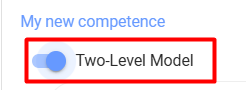
In the competency management module Choice of a single- or two-level model, this is done by activating the slider in each competency:
3. General Assessment Procedure Flowchart.
3.1. In the Competency Management module:
- Create a model competencies;
- Add scale, by which the evaluated will be assessed.
3.2. Creating an assessment directly in the Settings section - Assessment 360
- Configuration estimates.
- Choice evaluated and evaluators. The evaluated are always added by the moderator. Evaluators can be formed in two ways:
-
- The moderator forms the list of individuals to be evaluated. Each evaluator is added to the evaluated person individually. It is possible to pull from the subordinate structure or the manager.
- The evaluators themselves form the list. This option is activated, then the evaluated individuals in their personal account, in the My Evaluations section, receive a task to form a list of evaluators and Choice who approves this list.
-
- Choice of competencies and scales. Competencies can be pulled from the competency block profile. Profile, competency blocks and scales are pre-entered in the Competency Management module.
3.3. Status for list formation and the assessment itself can be viewed in the Results tab.
3.4. After the assessment is completed, the results will be available in the Results tab and in the Reports section.
Creating an assessment
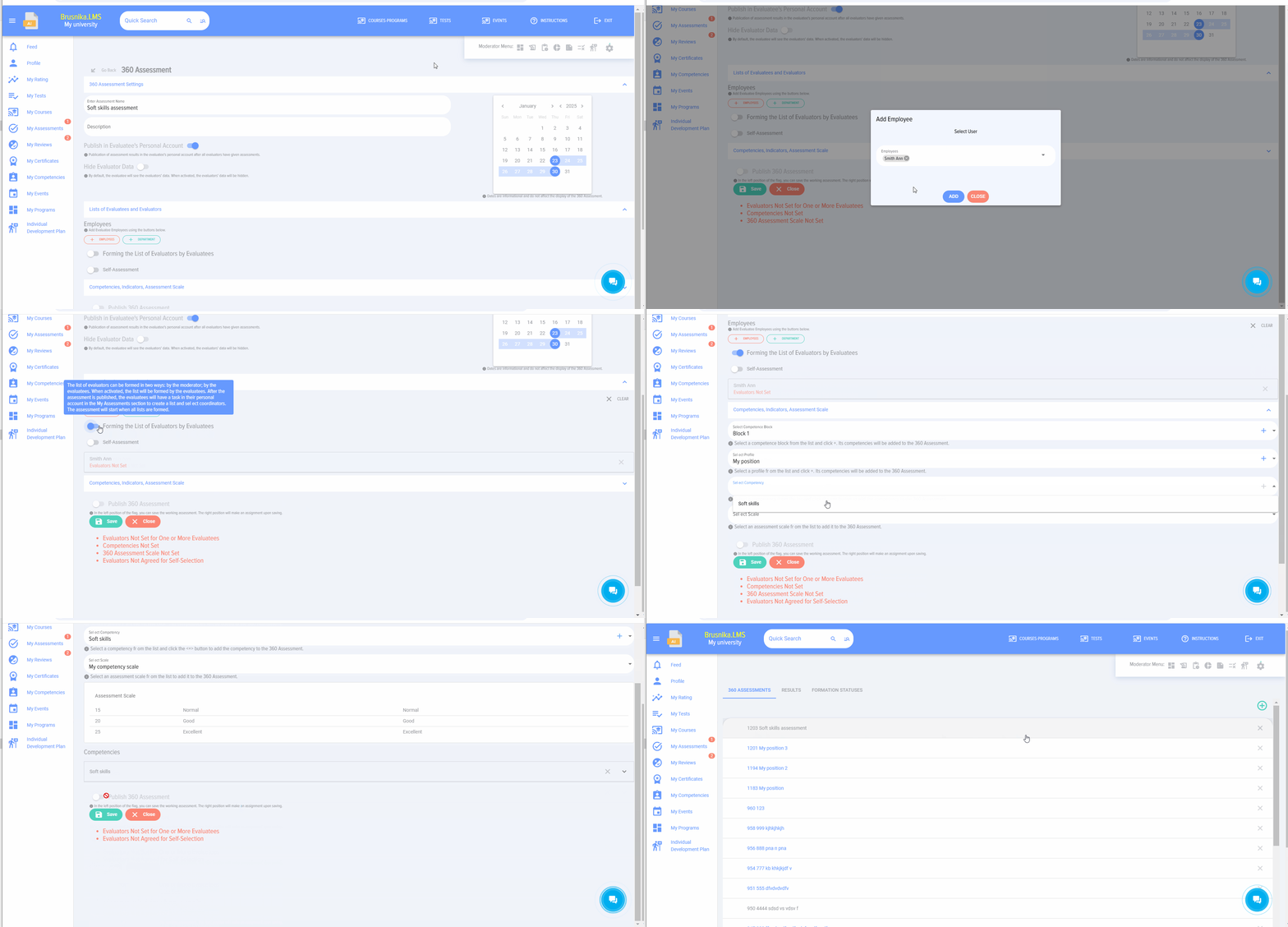
1. To create a new assessment, click on
2. Fill out the card:
- Title, Description of Assessment.
- Choose:
- How to Set Tasks (Bitrix24 Only)
- To publish or not to publish evaluation results in the evaluated person's personal account.
- To hide or not to hide evaluator data.
- Select the assessment dates. The dates are informational and do not affect anything.
3. Form lists of evaluatees and evaluators. The list of evaluatees is always added by the moderator. The list of evaluators can be formed in two ways:
- Moderator
- Launch the mechanism for forming the list of evaluators by the evaluated themselves.
4. Mechanism for forming the list of evaluators by those being evaluated next.
The moderator adds the evaluation list and activates the function.
Fills in all other sections of the assessment and without publishing the assessment
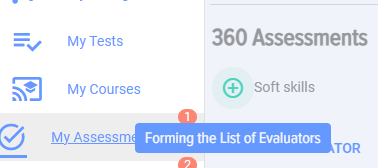
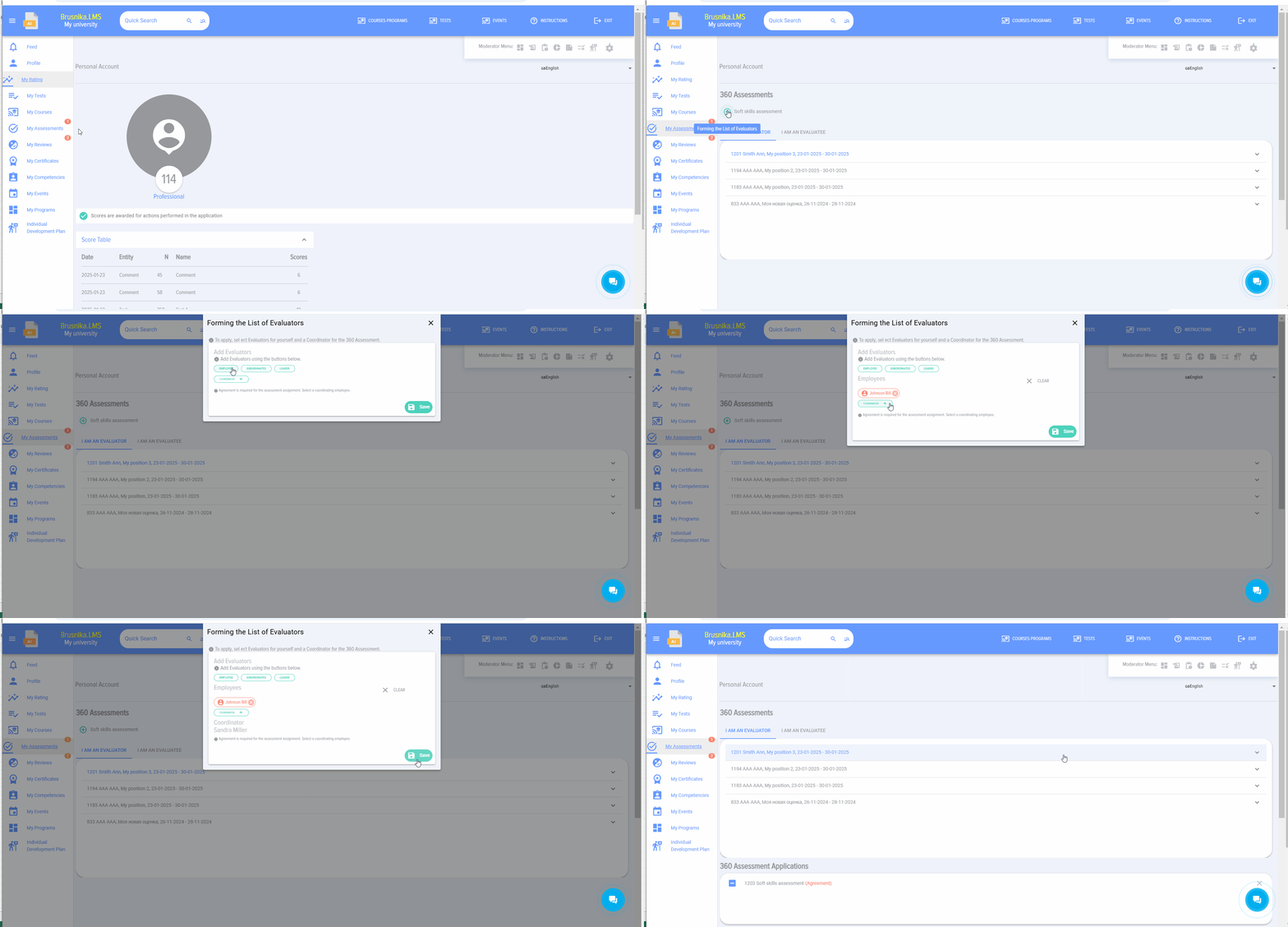
In the evaluated user's personal account, in the My Assessments section, the following element will appear:
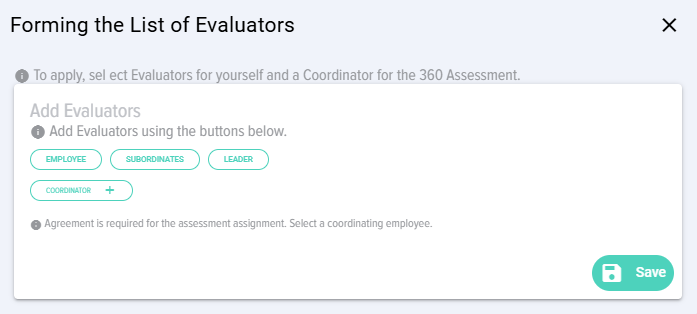
Click on the plus sign, and a window for creating the list of evaluators will open:
In this window, you need to select the evaluators and approvers for this list.
As a rule, the immediate supervisor acts as the approver.
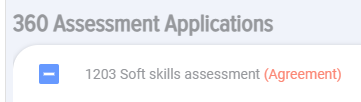
The approver in the personal account, under the My Assessments section and the 360 Assessment Requests subsection, will have a task to approve the list of evaluators:
It must be opened and the list must be approved or disapproved.
At the same time, Coordinator can also make changes to the list.
In the moderator's section under Assessment, in the Statuses tab, all current assessments are displayed where lists are being formed by the assessed individuals with their current statuses:
You can select the persons to be evaluated and send a system notification reminder.
After the lists are formed and agreed upon by all evaluated Assessment in the Evaluations section, the moderator receives Status Agreed:
The moderator can open the assessment and Publish it:
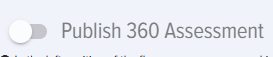
For this, the "360 Assessment Publication" element is set to active state and the Save button is clicked.
All evaluators will receive an assessment task in their Personal Accounts under the My Assessments section.
5. Select the competencies and the evaluation scale for the Assessment.
When selecting a competency, Block competencies or Profile that need to be added to the assessment, remember to click the plus sign.
The added competencies will appear below.
6. After completing all sections, move the Publication assessment slider to the active state and save. Assessment is published, and the task for conducting the assessment will appear in the assessors' personal accounts under the My Assessments tab.




Conducting an assessment
After creating and publishing the evaluation, the employees who are being evaluated will see this Assessment in their personal account under the My Evaluations tab - I-Evaluator section.
To evaluate, click on the evaluation name and assess the employee according to the proposed competencies, selecting ratings from the list.
At the end, you can enter comments that will be reflected in the overall report.
Evaluation results
The evaluation results are only available to the moderator. To access them, open the evaluation and navigate to the "Results" tab. Additionally, Assessment may be accessible to the evaluated individual if the corresponding setting was activated when the evaluation was created.
The evaluation results are presented in a table with ratings given by each Evaluated for each competency.
The application automatically generates a diagram.
In addition, in the Reports section, by selecting the report Assessment 360, the moderator can generate reports for multiple employees and export them to pdf or excel formats.
You can delete the responses of one or more evaluators. To do this, click the "Delete Responses" button and select those whose responses will be deleted.
Frequently Asked Questions
Question: Is it possible to use multiple rating scales in a single evaluation?
Answer:
No, within a single assessment, only one rating scale can be used. This ensures uniformity and comparability of results within that specific assessment.
No, only one grading scale can be used in a single assessment.
Question: What to do if you cannot select competencies for a 360-degree assessment?
Answer:
If you encounter difficulties selecting competencies when creating a 360-degree assessment, ensure that all required competencies have been previously published in the "Competency Management" module. Only published competencies are available for selection in the assessment settings.
Question: How to do 360-degree evaluation employees?
Answer:
The application allows creating a two- or three-level competency model.
Level 1 - Competence. For example, "teamwork".
Level 2 - Manifestation Indicator. For example, for the competency "teamwork," "shows interest in the opinions of other colleagues," "quickly establishes contact and maintains partnership relationships," etc.
Level 3 - Assessment. It can be any, 1, 2, 3, 4, 5, or manifests, does not manifest, etc.
That is, the competency model can be:
- Competence and rating scale;
- Competence - manifestation indicators and assessment scale.
The overall assessment scheme is as follows:
1. In the Competency Management module
-
- Create a model competencies;
- Add scale, by which the evaluated will be assessed.
2. Creating the assessment directly in the Settings section - Assessment 360
- Assessment setup
- Choice evaluated and evaluators. The evaluated are always added by the moderator. Evaluators can be formed in two ways:
-
- The moderator forms the list of individuals to be evaluated. Each evaluator is added to the evaluated person individually. It is possible to pull from the subordinate structure or the manager.
- The evaluators themselves form the list. This option is activated, then the evaluated individuals in their personal account, in the My Evaluations section, receive a task to form a list of evaluators and Choice who approves this list.
-
- Choice competencies for which assessment scales will be applied. Competencies can be pulled from the competency profile. Profile, competencies and scales are pre-defined in the Competency Management module.
3. Status for list formation and the assessment itself can be viewed in the Results tab.
4. After the assessment is completed, the results will be available in the Results tab.
Question: Why can't I select competencies for the 360-degree assessment?
Answer:
To select a competency for 360-degree evaluation, they must be published.
Question: Why can't I select competencies for 360-degree evaluation?
Answer:
To select a competency in the 360-degree assessment, they must be published.
Question: Which competency model does the system support for conducting assessments?
Answer:
The "BR_0" system supports a three-level competency model, but can also operate with a two-level model.
- Level 1 - CompetenceSoft skills
- Level 2 - Manifestation IndicatorSpecific actions or behavioral patterns demonstrating competence, for example, "shows interest in colleagues' opinions."
- Level 3 - AssessmentThe scale used to assess indicators or the competency itself, which can be any (e.g., 1-5, "demonstrates/does not demonstrate", "good/average/excellent"). If the company uses Two-Level Model ("Competence-Assessment"), indicators are not added, and Competence is assessed directly. The Choice model is configured in the competency management module.
Question: What is the overall process for conducting a 360-degree assessment?
Answer:
The 360-degree assessment process consists of several main stages:
- Preparation in the "Competency Management" moduleCreating a competency model and adding an assessment scale.
- Creating an assessment in the "Settings - Assessment 360" sectionSetting up evaluation parameters, Choice evaluated and evaluators, as well as defining competencies and scale.
- List formation and assessmentEvaluation lists can be formed by the moderator or by the evaluated individuals themselves with subsequent approval. After the evaluation is published, evaluators fill out forms.
- View ResultsStatus List formation and evaluation results are available to the moderator in the "Results" tab and in the "Reports" section. Results may be available to the evaluated individuals if configured.
Question: What is the general framework for conducting a 360-degree evaluation?
Answer:
The process of conducting a 360-degree evaluation consists of several main stages:
- Preparation in the "Competency Management" moduleCreating a competency model and adding an assessment scale.
- Creating an assessment in the "Settings - Assessment 360" sectionSetting up evaluation parameters, Choice evaluated and evaluators, as well as defining competencies and the scale.
- Formation of lists and conducting evaluationEvaluation lists can be formed by the moderator or by the evaluated individuals themselves, subject to subsequent approval. After publication of the evaluations, the evaluators fill out the forms.
- View ResultsStatus List formation and evaluation results are available to the moderator in the "Results" tab and in the "Reports" section. Results may be available to the evaluated individuals if configured.
Question: How are the lists of evaluated and evaluators formed?
Answer:
The list of evaluated is always added by the moderator. The list of evaluators can be formed in two ways:
- ModeratorThe moderator manually adds each evaluator to each evaluatee, with the option to pull data from the subordinate or manager structure.
- Most highly ratedThis option allows the assessed individuals to independently form the list of those who will evaluate them in their personal account, as well as select an approver (usually their immediate supervisor). Once the assessed individuals have formed their lists and the approvers have approved them, the moderator publishes the evaluation.
Question: Where are the assessment results displayed and who has access to them?
Answer:
The evaluation results are available to the moderator in the "Results" tab within the evaluation itself. The moderator can see a table with each evaluator's ratings for every competency, as well as an automatically generated chart. Additionally, the moderator can generate reports for multiple employees in the "Reports" section and export them in PDF or Excel formats. The results can also be made available to the evaluated employee if the corresponding setting was activated when creating the evaluation. The moderator also has the ability to delete responses from one or more evaluators.
Question: What to do if you cannot select competencies for a 360-degree evaluation?
Answer:
If you encounter difficulties selecting competencies when creating a 360-degree evaluation, ensure that all required competencies have been previously published in the "Competency Management" module. Only published competencies are available for selection in the evaluation settings.
Question: What assessment data can be hidden or published?
Answer:
When creating an assessment, the moderator can select the following options that affect data privacy and accessibility:
- Publication of results in the assessed individual's personal accountYou can configure whether the evaluation results are directly accessible to the employee being evaluated.
- Data hiding evaluationYou can hide the names or information of the evaluators to ensure anonymity and promote more honest responses.
Conducting the assessment
After creating and publishing the assessment, employees who are evaluators will see this assessment in their Personal account under My assessments - tab I am the Evaluator.
To assess, click on the assessment name and evaluate the employee using the proposed competences, selecting assessments from the list.
Comments can be entered at the end, which will appear in the general report.
Assessment results
The evaluation results are only available to the moderator. To access them, open the evaluation and navigate to the "Results" tab. Additionally, Assessment may be accessible to the person being evaluated if the corresponding setting was activated when the evaluation was created.
The evaluation results are presented in a table with ratings given by each Evaluated for each competency.
The application automatically generates a diagram.
Moreover, in the Reports section, by selecting the report Assessment 360, the moderator can generate reports for multiple employees and export them. pdf or excel formats.
You can delete Answer for one or more evaluators. To do this, click the "Delete Responses" button and select those whose responses will be deleted.
360 assessment FAQ
Can multiple rating scales be used in one assessment?
No, only one rating scale can be used in a single assessment.