
Theme
Section allows you to personalize the application according to your visual style.
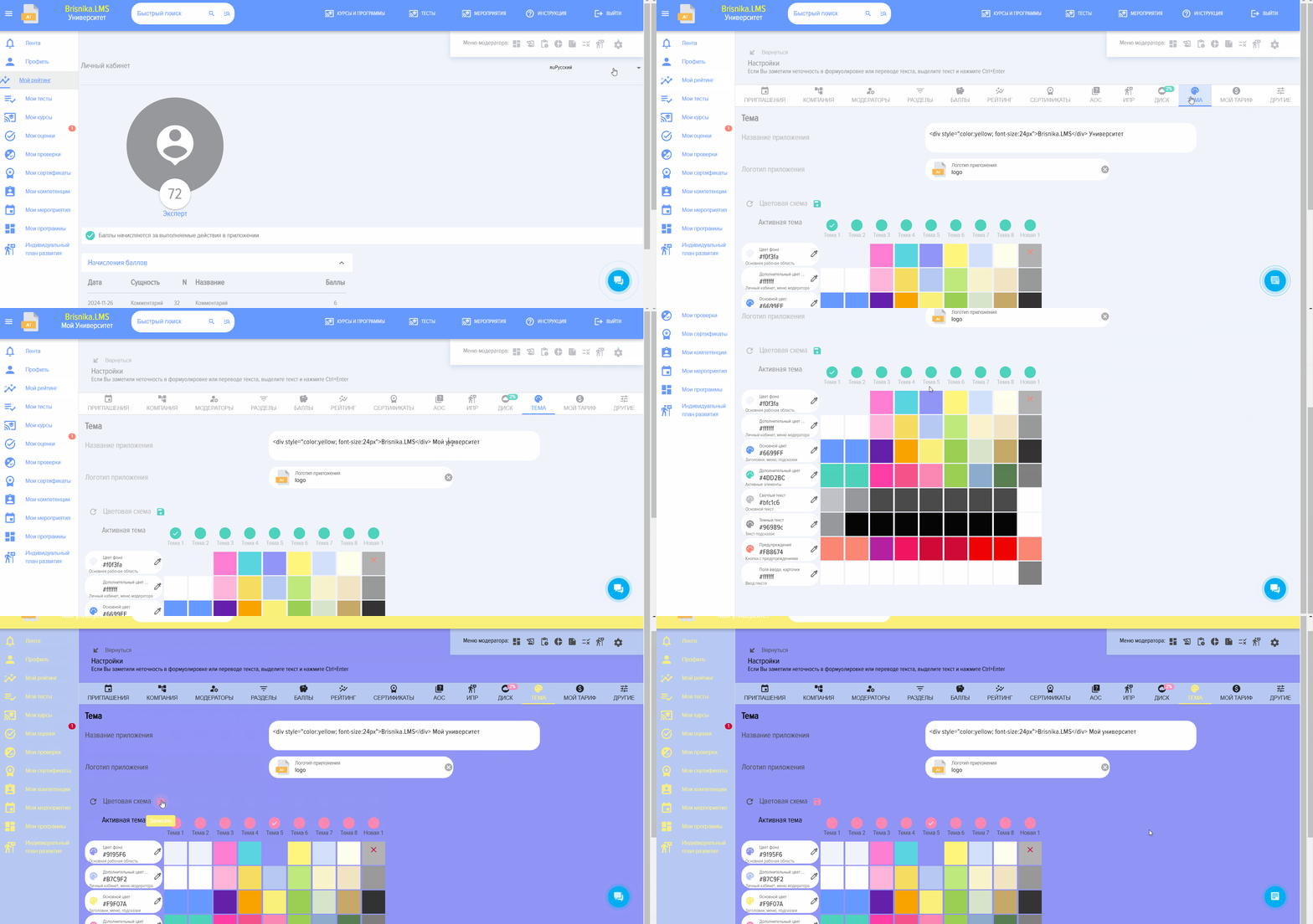
Application name displayed in the topupper left corner. To change the name, enter a new one in the field:

The applicationApplication logo displayed in the upper left corner.
To add your own logo, upload it in the field:

Color scheme. Choose a ready-made onepreset or customize your own
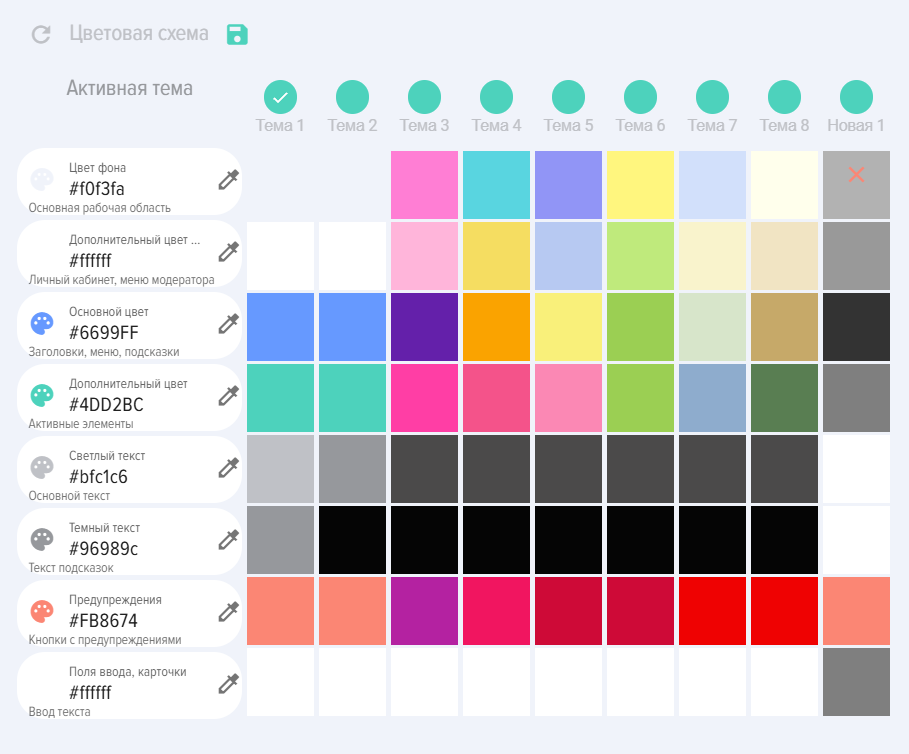
To save the newly created topic, click on the Save element.
IMPORTANT! For the changes to be saved and applied, these changesthey must be made by the Administrator of your portal (Bitrix24 or any other system). If an employee is an application moderator but is not thea portal administrator, the changes will not be applied.
Also,Additionally, to apply the changes, you need to purchase a subscription to Themes in the "My Plan - Theme" section.
Frequently Asked Questions
Question: How to change the color, name, and logo of the application?
Answer:
In the application, you can change the color of the entire application or individual elements, the logo, and the application name displayed at the top left.
This option is paid. The current
costprice can be found in the Settings - Application Settings - My Plan - "Theme" tab.
For Bitrix24. Only a moderator with Bitrix24 portal administrator rights of the Bitrix24 portal can make changes to the application. For other integrations such as Zoho CRM, amoCRM, Megaplan, YClients, and the SA version, changesapplication moderators can bemake made by the application moderators.changes.
To change the color, name, and logo of the application:
- Open Section Theme (Settings - Application Settings)Enter a new application name, add a logo, and configure the application colors.
- If
athe Topic subscriptionto the Themeis purchased, the settings will be saved automatically. If the subscription is not purchased, the LMS will warn about this.
Question: Why is our logo missing in the LMS?
Answer:
Brief Answer: The logo may be missing because changes were not made by the portal administrator, a theme subscription was not purchased, or the Theme module was deactivated in the Additional Modules section.
Details:
• To change the logo, the changes must be made by your portal Administrator (Bitrix24 or another system). If an employee is an application moderator but is not a portal administrator, the changes will not be applied.
• To apply the changes, you need to purchase a subscription to Themes in the "My Plan - Theme" section.
• Module Theme is activated or deactivated in the section: Settings - Application Settings - More - Additional Modules.
Location in the interface: Settings - Application Settings - Theme.
Question: We added the application name, but it overlaps with the logo. How can we add the LMS name so it'sit is positioned neatly?
Answer:
For this, use an HTML insertion of the following type: University . Replace the word "University" with the name of your LMS. Please note that if the name is longer than 20 characters, it will not fit in the field allocated for this purpose.
Question: We added the application name, but it overlaps with the logo. How can we add the LMS name so it's positioned neatly?
Answer:
For this, use an HTML insertion of the following type: University . Replace the word "University" with the name of your LMS. Please note that if the name is longer than 20 characters, it will not fit in the field allocated for this purpose.