
Measures
Introduction
1. The "Events" module is designed for planning, organizing, and tracking educational activities. For example, attending a conference, in-person training, meeting with a mentor, etc.
2. Main features of the module:
- Creating events, sending invitations to participants.
- Call for participation applications, confirmation of participation, monitoring of participant numbers.
- Collection of feedback forms following the event.
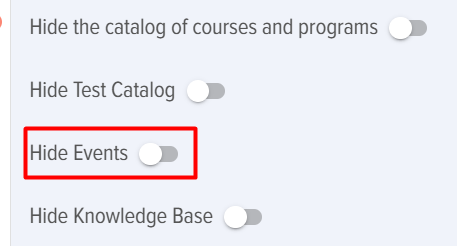
3. In the application settings (Settings - Others), you can hide Catalog. However, it will still remain accessible to the application moderators.
4. Activities can be added to the Program. In this case, Event will be located in the Programs.
Creating an event
1. There are two possible ways to create an event:
- Moderator.
- By the user via a request. After the request is confirmed by a moderator, Event will be created.
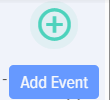
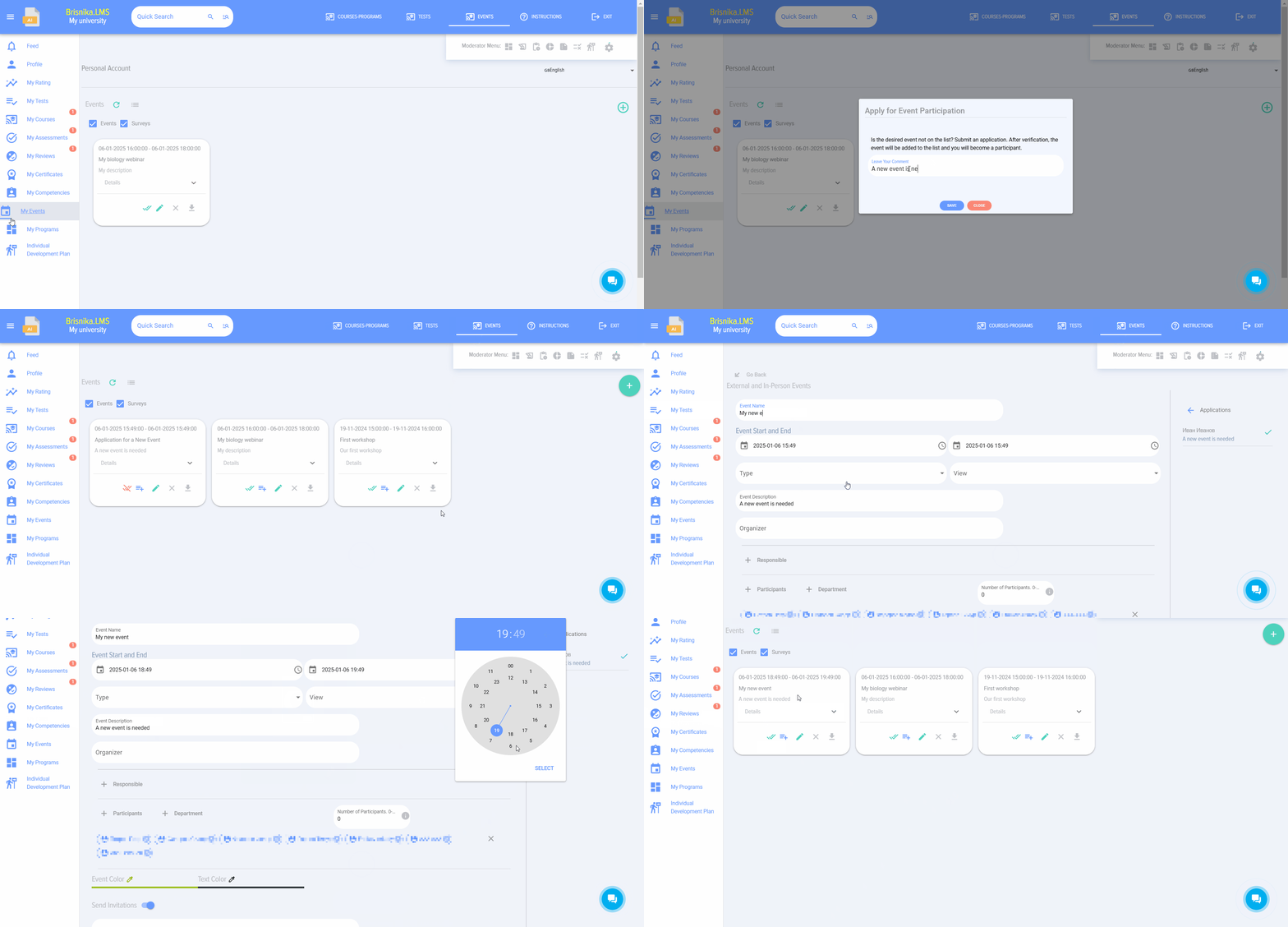
2. ModeratorTo create an event, click the "Add" button A card for creating an event will open.
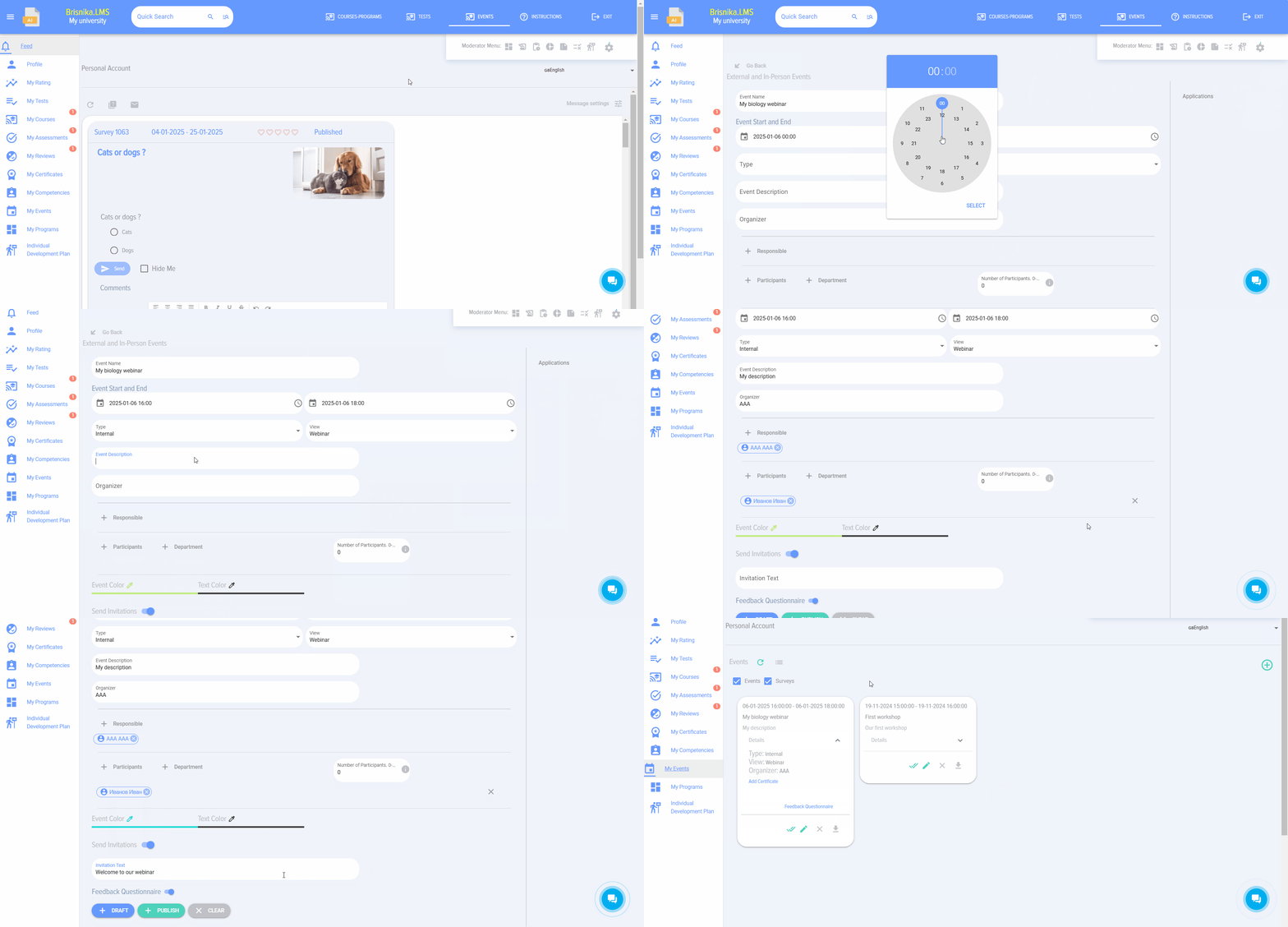
Event Creation Card, containing the following fields and elements:
- event name input field
- Start and end of the event
- type (internal, external) and event type. An exhaustive list of development events is provided; if anything is missing from the reference, please write to us, we will add it.
- event description.
- event organizer.
- responsible for Event.
- Participants. The list of participants is created by the moderator. The list also includes employees who independently submitted an application and were approved by the moderator. The field - number of participants allows setting a participant limit. If the limit is exceeded, an employee submitting an application will receive a notification that the participant limit has been exceeded.
- setting up colors for events and activities.
- send invitations and the invitation text.
- By Default is active. A feedback form configured for events is displayed.
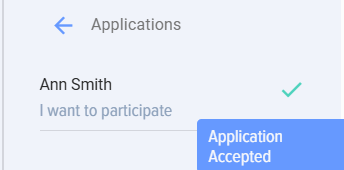
On the right is the Section for coordinating submitted applications. All applications that employees submit to participate in the event will be displayed in this section:
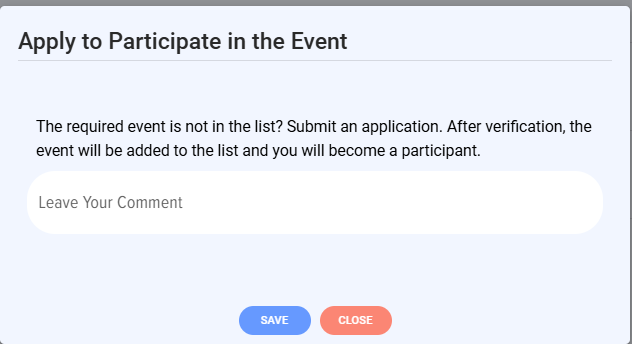
3. UserFrom the personal account, you can create a request for a new Event via the element
When clicked, a simple event creation request form will open.
The application will be sent to moderators, and after their approval Event will appear in the general catalog of events.








Participation in the event, Event in the personal account, in the calendar
1. To participate in the event, the employee selects Event from the Event Catalog and submits the application by clicking the element.
2. After confirmation by the moderator (the moderator has edit mode, with a list of applicants on the right), the employee will be added to the list of participants.
3. After moderator approval, the event will appear in the employee's personal account and calendar (for Bitrix 24).
Event Reports
1. Based on the results of participation in events, you can generate a report in the Reports section under Events: external, in-person.
2. If a feedback form was added to the event, reports can be generated based on the feedback forms.
Participating in an event, event in the personal account, in the calendar
1. To participate in an event, an employee selects an event from the event vatalog and submits an application by clicking the element
2. After confirmation by the moderator (the moderator has editing mode, the list of applicants is on the right), the employee will be added to the participant list.
3. After confirmation by the moderator, the event will appear for the employee in the personal account and calendar (for Bitrix 24).
Reports on events
1. Based on the results of participation in events, you can generate the report events: external, in-person in the reports section.
2. If a Feedback Form was added to the event, then you can build reports on Feedback Forms.
Event statuses
Events have the following statuses:
- Published.
- Not published.
Frequently Asked Questions
Question: Is it possible to add Event to the calendar for all event participants?
Answer:
For some systems (such as Bitrix24), events are automatically added to the calendar.
Please note that the moderator must Rights make changes to the calendar that is selected when creating the Event. If such permissions are not available, then Event will not be added to this calendar.
Question: How can I create a Event in the system?
Answer:
There are two ways to create an event:
- Moderator: A moderator can directly create a Event through a dedicated card by filling in fields such as name, start and end dates, type, category, description, organizer, responsible person, participant list, participant limit, color settings, as well as send invitations and attach a feedback form.
- Submitted by the user via a request: An employee can submit a request to create a new event through their Personal Account. After the request is confirmed by a moderator, the Event will be created and appear in the general catalog.
Question: What main functions are available when a moderator creates an event?
Answer:
The moderator specifies when creating an event:
- Title, start and completion of the event.
- Type (internal, external) and event category from the exhaustive list.
- Description, organizer, and responsible person for Event.
- List of participants, setting a participant limit. The system will notify the employee when the limit is exceeded.
- Event color settings, as well as invitation text.
- By Default active feedback form output function.
- The right side of the card contains Section for coordinating employee applications.
Question: How can I create Event in the system?
Answer:
There are two ways to create an event:
- Moderator: A moderator can directly create a Event through a special card by filling in fields such as name, start and end date, type, category, description, organizer, responsible person, participant list, participant limit, color settings, as well as send invitations and attach a feedback form.
- User via request: An employee can submit a request to create a new event through their Personal Account. After the moderator confirms the request, the Event will be created and appear in the general catalog.
Question: What are the main functions available when creating an event as a moderator?
Answer:
The moderator specifies when creating an event:
- Event title, start and end date.
- Type (internal, external) and type of event from an exhaustive list.
- Description, organizer and responsible for Event.
- List of participants, setting a limit on the number of participants. The system will notify the employee when the limit is exceeded.
- Event color settings, as well as invitation text.
- By Default active feedback form output function.
- The right side of the card contains Section for coordinating submitted applications from employees.
Question: How can an employee participate in an event?
Answer:
An employee selects the desired Event from the Event Catalog and submits an application by clicking the corresponding element. Once the moderator approves the application (the moderator will have a list of applicants), the employee will be added to the list of participants, and Event will appear in their personal account and calendar (for Bitrix 24).
Question: What reports can be generated for events?
Answer:
Based on the results of participation in events, you can generate the "Events: External, In-person" report in the "Reports" section. If a feedback form was added to the event, you can also build reports based on these forms.
Question: What statuses can events have?
Answer:
Events can have the following statuses:
- Published
- "Not published"
Question: Can Event be added to the calendar for all participants?
Answer:
Yes, for some systems, such as Bitrix24, events are automatically added to participants' calendars. It is important that the moderator has the necessary Rights to make changes to the selected calendar when creating an event; otherwise, the Event will not be added.
Question: Where can I hide Catalog events?
Answer:
Catalog events can be hidden in the application settings (Section "Settings - Other"). However, it will remain accessible to application moderators.
Question: Is it possible to add Event to the calendar for all participants?
Answer:
Yes, for some systems, such as Bitrix 24, events are automatically added to participants' calendars. It is important that the moderator has the necessary Rights to make changes to the selected calendar when creating an event; otherwise, Event will not be added.
Question: Where can I hide the Catalog of events?
Answer:
Catalog events can be hidden in the application settings (Section "Settings - Other"). However, it will remain accessible to the application moderators.
FAQ on events
Can an event be added to the calendar for all event participants?
For some systems (for example, Bitrix 24), Events are automatically added to the calendar.