
Feed
Notifications
In this tab, notifications for a specific user from the application are displayed. The notification feed includes the following events:
- When creating/editing course assignments, tests, 360-degree assessments, IDP.
- When adding/removing from the moderators list.
- If an employee is selected as a reviewer Open a question and someone has passed Test with this open question, the reviewer receives a notification that it is necessary to check Answer.
Application update
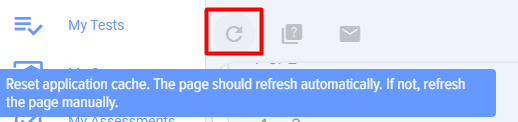
In this tab, there is an element "Reset application cache" (analogous to browser refresh):
It is recommended to use this element for all cases when it is necessary to refresh the browser window with the application. For example, when you have not worked in the application for a long time, but the window was open. If a tariff change has occurred and the result needs to be seen immediately.
Mark all notifications as read
Performs the corresponding Action - marks all notifications as read.
Hide read
Performs the corresponding Action - hides read notifications.
Hide ReadHide read
Performs the corresponding action - hides read notifications.
Surveys
1. When clicked, the poll creation card opens. Fully identical to creation. опросов In Activities.
2. Survey can be created by any employee.
3. The created Survey is placed in the Application Feed according to the specified visibility settings.
Messages
1. Allows creating and posting messages to the application's Feed:
2. Message statuses: published; draft.
3. The message has the following settings:
- Allow comments - enabled By Default. Allows users to add comments to the message.
- Enable likes. Activated By Default. Allows liking messages.
- For all. Activated By Default. Indicates that the message is available to everyone. When deactivated, allows configuration of message availability for specific employees, departments.
Message Configuration
In this section, personal notifications are configured.
The mechanism works as follows. When a notification needs to be sent, the application first checks the general notification settings (in the application's general settings, accessible only to moderators). These have priority:
- If "Disabled" is selected in the general settings, notifications will not be sent.
- If Enabled is selected - notifications will be sent.
- If At User's Discretion is selected, then Completed will be what is selected in each user's personal settings in this section.
Personal notification settings are configured by each employee in their personal account under the section Feed.
Blue - for all employees, red - for moderators only.
Message settings
This section configures personal notifications.
The mechanism works as follows. When it is necessary to send a notification, the application first checks the general notification settings (in the general application settings, accessible only to moderators). They have priority:
- If "Disabled" is selected in the general settings - notifications will not be sent.
- If "Enabled" is selected - notifications will be sent.
- If "At user's discretion" is selected, then what is selected in each user's personal settings in this section will be executed.
Personal notification settings are managed by each employee in their Personal account in the Feed section.
Blue ones - for all employees, red ones - only for moderators.
In this tab, notifications for a specific user, received from the application, are displayed. The following events appear in the notification feed:
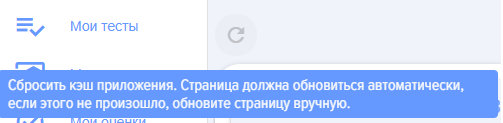
This tab contains the "Reset Application Cache" element (analogous to a browser refresh).
1. When clicked, the survey creation card opens. It is completely identical to creating surveys in Events.
2. Any employee can create a survey.
3. The created Survey is placed in the application Feed according to the specified visibility settings.
1. Allows to create and place application messages in the Feed:
2. Message Statuses: Published; Draft.
3. The message has the following settings:
In this section, personal notification settings are configured.
The mechanism operates as follows. When it is necessary to send a notification, the application first checks the general notification settings (in the general application settings, accessible only to moderators). They have priority:
Personal notification settings are configured by each employee in their Personal Account under the Feed section. Blue notifications are for all employees, red ones are for moderators only.
Feed events - This is an interactive Section on the Main page of the personal account, designed for promptly informing the user about important events in the learning system. It serves as a unified center for notifications, news, and interaction tools.
Main tape control functions
At the top of the ribbon are buttons for managing the event list:
- Update (refresh icon): allows you to instantly load the latest notifications without reloading the entire page.
- Readmarks all current events as viewed.
- Hides or shows read messages.
- Search/FilterIn the feed, you can find specific messages or filter them by status.
Notification and Message Types
Each event in the feed is presented as a separate card with a date. Main notification types:
- When creating/editing assignments for programs, courses, tests, 360-degree feedback, IDP.
- When adding/removing from the moderators list.
- If an employee is selected as a reviewer Open a question and someone has passed Test with this open question, the reviewer receives a notification that it is necessary to check Answer.
- Interactive elementsfor each card, buttons are available "More details" (for moving to the object) and "Delete" (to permanently remove the notification from the list).
Interaction Tools
Feed enables not only information retrieval but also participation in the company's life through special modules:
-
VotesUsers can participate in polls and votes directly from their feed. When creating a vote, a moderator can configure:
- Anonymity levelregular (authors visible), public (results visible to everyone) or anonymous.
- Implementation timelineStart and end dates of activity.
- Engagement SettingsMultiple choice answers, comments, and likes.
-
Messages (News)Important announcements or informational posts.
- Audience setupMessages can be addressed to all employees, specific departments, or selected users.
- Validity periodability to set a period during which the news will be displayed in the feed.
- AttachmentsFiles can be attached to messages and votes for review.
- Message statuses: published; draft.
-
The message has the following settings:
- Allow comments - enabled By Default. Allows users to add comments to the message.
- Enable likes. Activated By Default. Allows liking messages.
- For all. Activated By Default. Indicates that the message is available to everyone. When deactivated, allows configuration of message availability for specific employees, departments.
Votes and Messages can be created by any employee. The created Vote or Message is placed in the application's Feed according to the specified visibility settings.
Feed events - This is an interactive Section on the Main page of the personal account, designed for promptly informing the user about important events in the learning system. It serves as a unified center for notifications, news, and interaction tools.