Feed
Notifications
In this tab, notifications for a specific user,user sent byfrom the application,application are displayed. The notification feed includes the following events:
- When creating/editing course assignments, tests, 360-degree
evaluations,assessments, IDP. - When adding/removing
tofrom thelistmoderatorsof moderators.list. - If an employee is selected as
thea reviewer Openfora question and someone has passed Test with this open question, the reviewer receives a notification that it is necessary to check Answer.
Application update
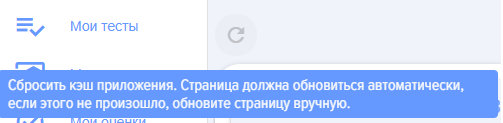
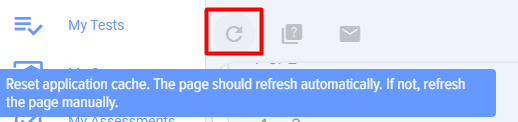
In this tab, there is an element "Reset application cache" (analogous to refreshingbrowser the browser)refresh):
It is recommended to use this element for all cases when it is necessary to refresh the browser window with the application. For example, when you have not worked in the application for a long time, but the window was open. If a tariff change has occurred and the result needs to be seen immediately.
Mark all notifications as read
Performs the corresponding Action - marks all notifications as read.
Hide read
Performs the corresponding Action - hides read notifications.
Hide ReadHide read
Performs the corresponding action - hides read notifications.
Surveys
1. When clicked, the poll creation card opens. It is completelyFully identical to creating.creation. questionsопросов inIn Activities.
2. Survey can be created by any employee.
3. The created Survey is placed in the Application Feed according to the specified visibility settings.
Messages
1. Allows to createcreating and placeposting messages into the application's Feed:
2. Message statuses: published; draft.
3. The message has the following settings:
- Allow comments - enabled By Default. Allows users to add comments to the message.
- Enable likes. Activated By Default. Allows liking
a message.messages. - For all. Activated By Default. Indicates that the message is available to everyone. When deactivated, allows
toconfigurationconfigure theof message availability for specific employees, departments.
Message Configuration
In this section, personal notifications are configured.
The mechanism operatesworks as follows. When ita isnotification necessaryneeds to sendbe a notification,sent, the application first checks the general notification settings (in the application's general application settings, accessible only to moderators). TheyThese have priority:
- If "Disabled" is selected in the general settings, notifications will not be sent.
- If Enabled is
selected,selected - notifications will be sent. - If At User's Discretion is selected, then Completed will be what is selected in each user's personal settings in this section.
Personal notification settings are managedconfigured by each employee in their personal account inunder the section.section Feed.
Blue - for all employees, red - for moderators only.
Message settings
This section configures personal notifications.
The mechanism works as follows. When it is necessary to send a notification, the application first checks the general notification settings (in the general application settings, accessible only to moderators). They have priority:
- If "Disabled" is selected in the general settings - notifications will not be sent.
- If "Enabled" is selected - notifications will be sent.
- If "At user's discretion" is selected, then what is selected in each user's personal settings in this section will be executed.
Personal notification settings are managed by each employee in their Personal account in the Feed section.
Blue ones - for all employees, red ones - only for moderators.
In this tab, notifications for a specific user, received from the application, are displayed. The following events appear in the notification feed:
This tab contains the "Reset Application Cache" element (analogous to a browser refresh).
1. When clicked, the survey creation card opens. It is completely identical to creating surveys in Events.
2. Any employee can create a survey.
3. The created Survey is placed in the application Feed according to the specified visibility settings.
1. Allows to create and place application messages in the Feed:
2. Message Statuses: Published; Draft.
3. The message has the following settings:
In this section, personal notification settings are configured.
The mechanism operates as follows. When it is necessary to send a notification, the application first checks the general notification settings (in the general application settings, accessible only to moderators). They have priority:
Personal notification settings are configured by each employee in their Personal Account under the Feed section. Blue notifications are for all employees, red ones are for moderators only.